CONTENT
- Creating a Request
- Setting the Location of the Electronic Signature
- Reference Number and Approval of the Request
- Save the form as a PDF
- Tutorials on other possible request settings
Creating a Request
This form serves as a cover letter for contracts, which are in PDF format and are sent electronically to the Director for signature via Albina.
The conctract cover letter is created as a new request.
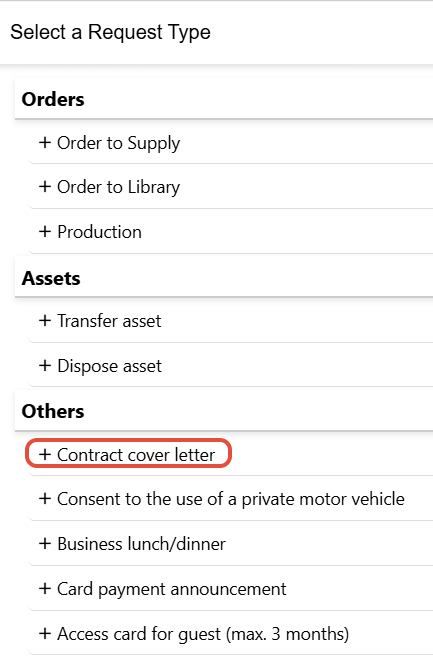
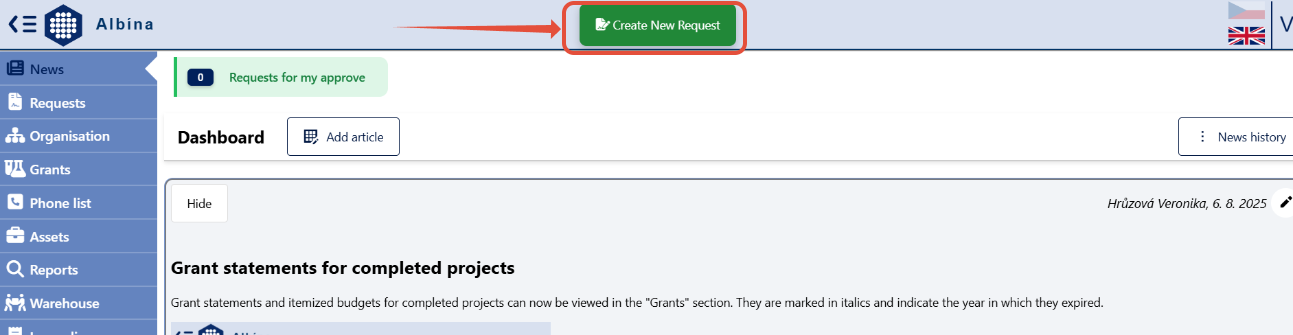 The form will appear after clicking on "Create New Request" in the Albína header and selecting the type of request -> Contract cover letter.
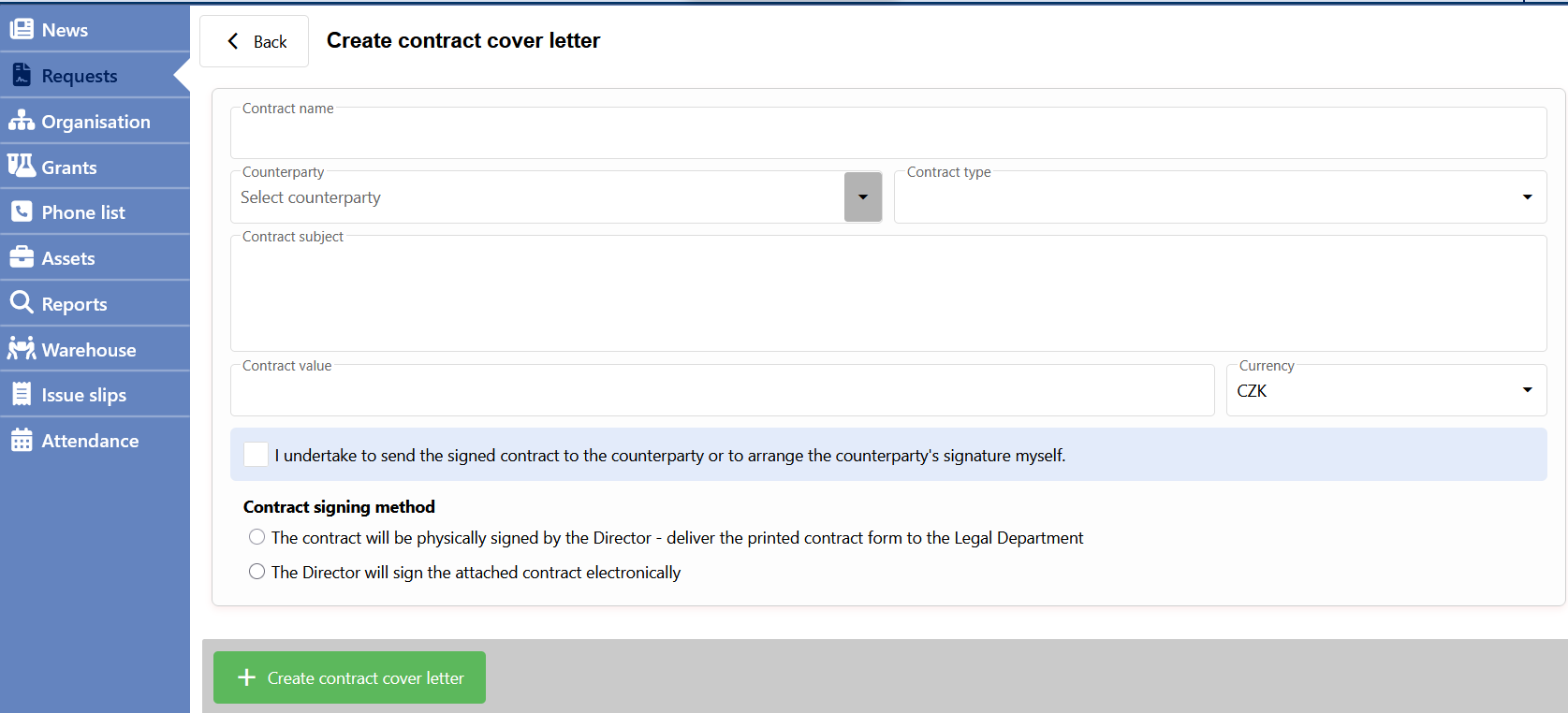
It is necessary to fill in:
- the name of the contract
- counterparty (can either be selected from the list or write your own)
- type of contract (select from the list)
- subject of the contract
- financial performance (if there is none, fill in 0 CZK)
- if you will be sending the signed contract to the counterparty yourself (and not via the legal department), tick this
- method of signature (electronic or physical)
Then click on "+Create contract cover letter". At this point, the request is already saved among your pending requests.
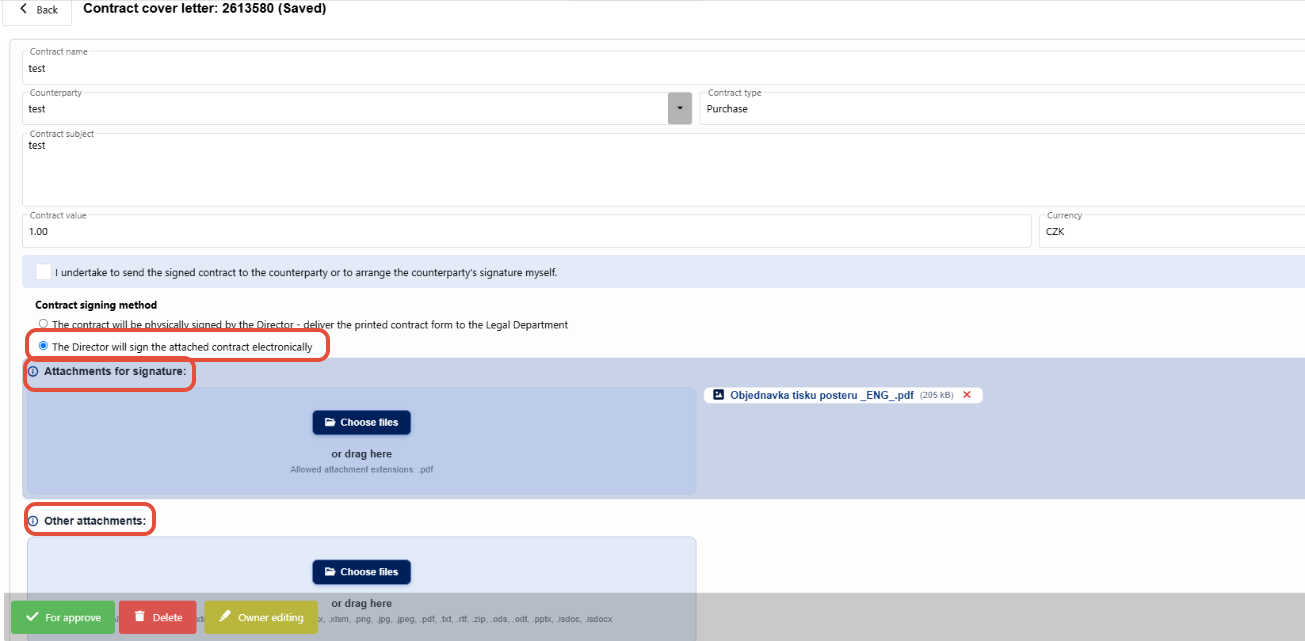
If you check the method of signing the contract "The director will sign the attached contract electronically", the window for attachments will be divided into 2 parts:
- attachments for signature - insert here only the documents to be signed by the director (PDF format only)
- other attachments - documents that will not be signed electronically
Now attach the contract for signature, add a comment if necessary, and submit "For Approve".
Setting the Location of the Electronic Signature
The electronic signature is automatically inserted in the upper-right corner of the first page of the contract.
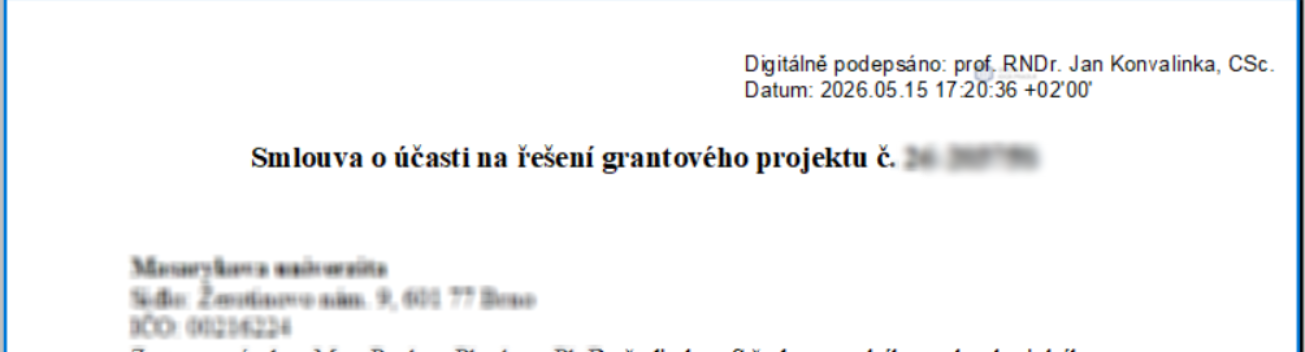
If you need to insert the signature in a different location, you can set the location before submitting the request.
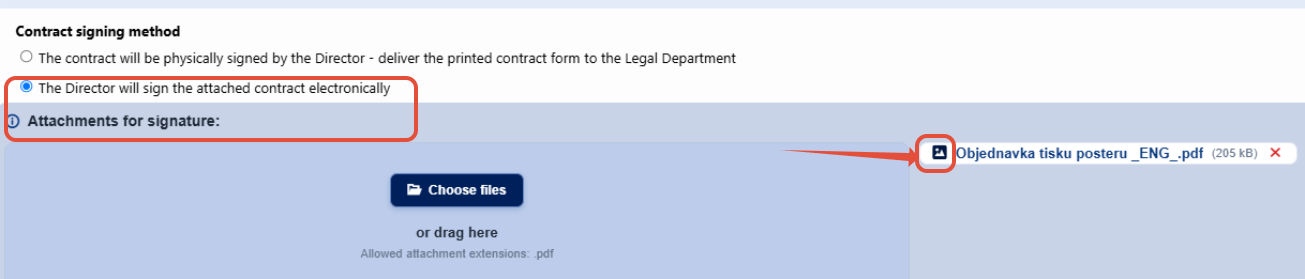
Upload the contract in PDF format to the "Attachments for signature" field and open a preview of it by clicking the image icon.
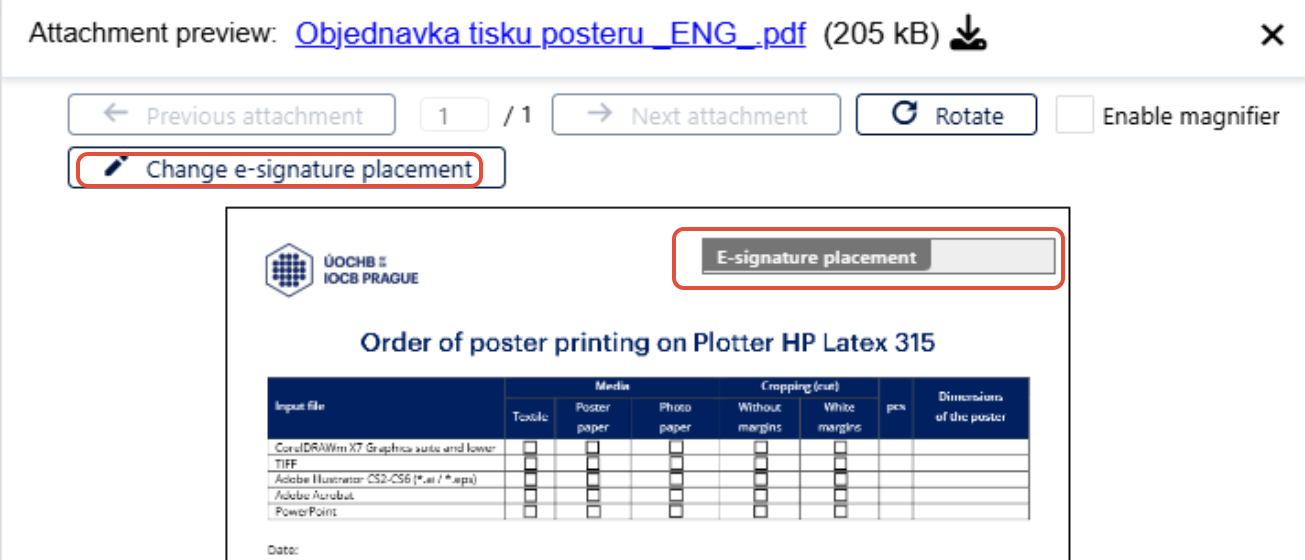
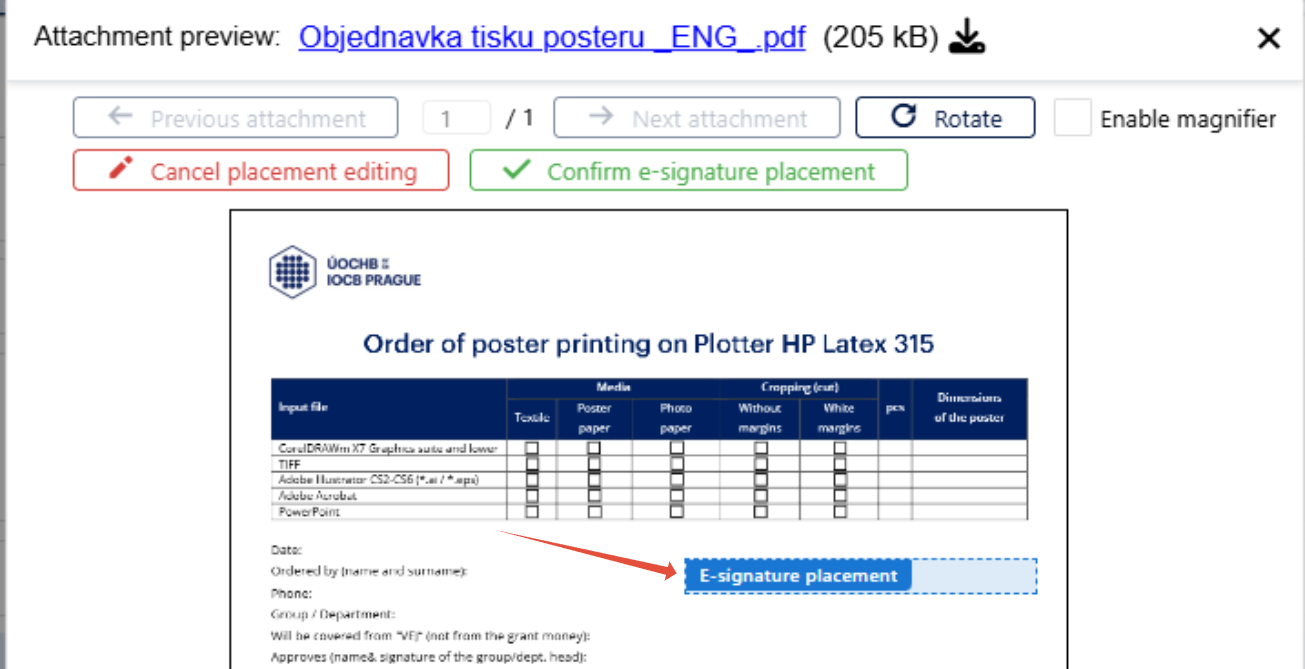
A preview of the contract will open with the signature field automatically placed. After clicking the "Change e-signature placement" button, simply click anywhere in the document (you can also navigate to other pages if the contract has multiple pages), and the signature field will move to that location.
Confirm the change to the electronic signature location by clicking the "Confirm e-signature placement" button.
Clicking "Cancel placement editing" will return the signature field to its original position.
Reference Number and Approval of the Request
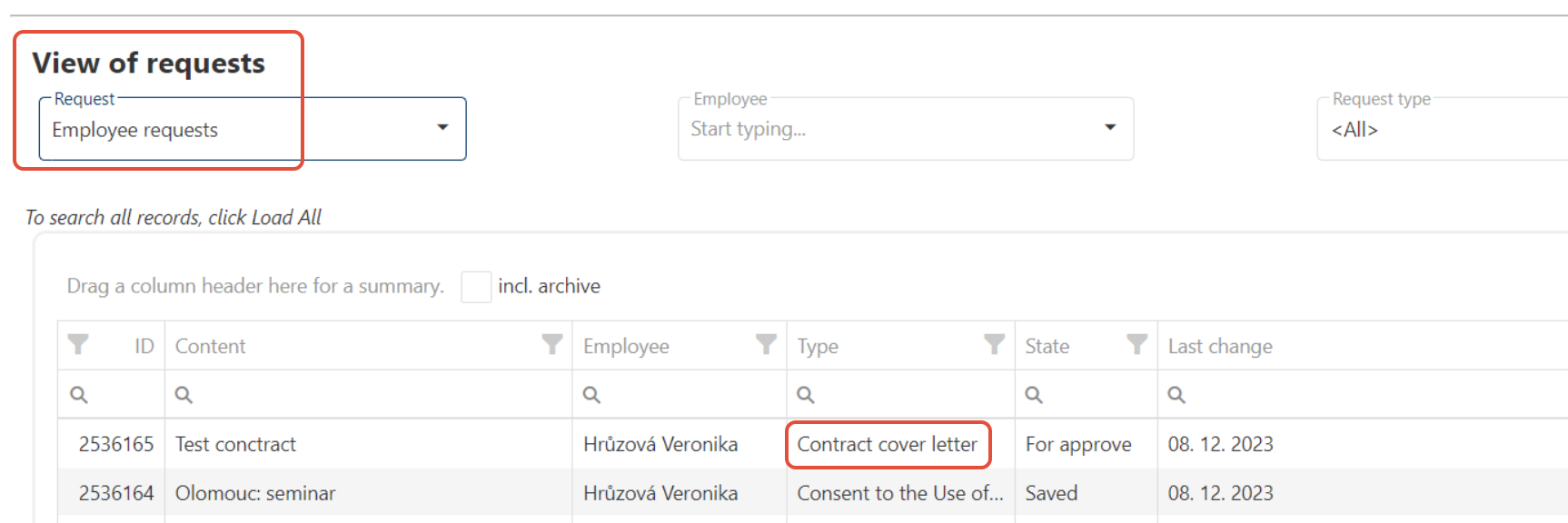
The sent request is stored among the Employee Requests. By clicking on the details of the request, you can see the current approval status and identify the reference number that is added automaticly during the approval process.
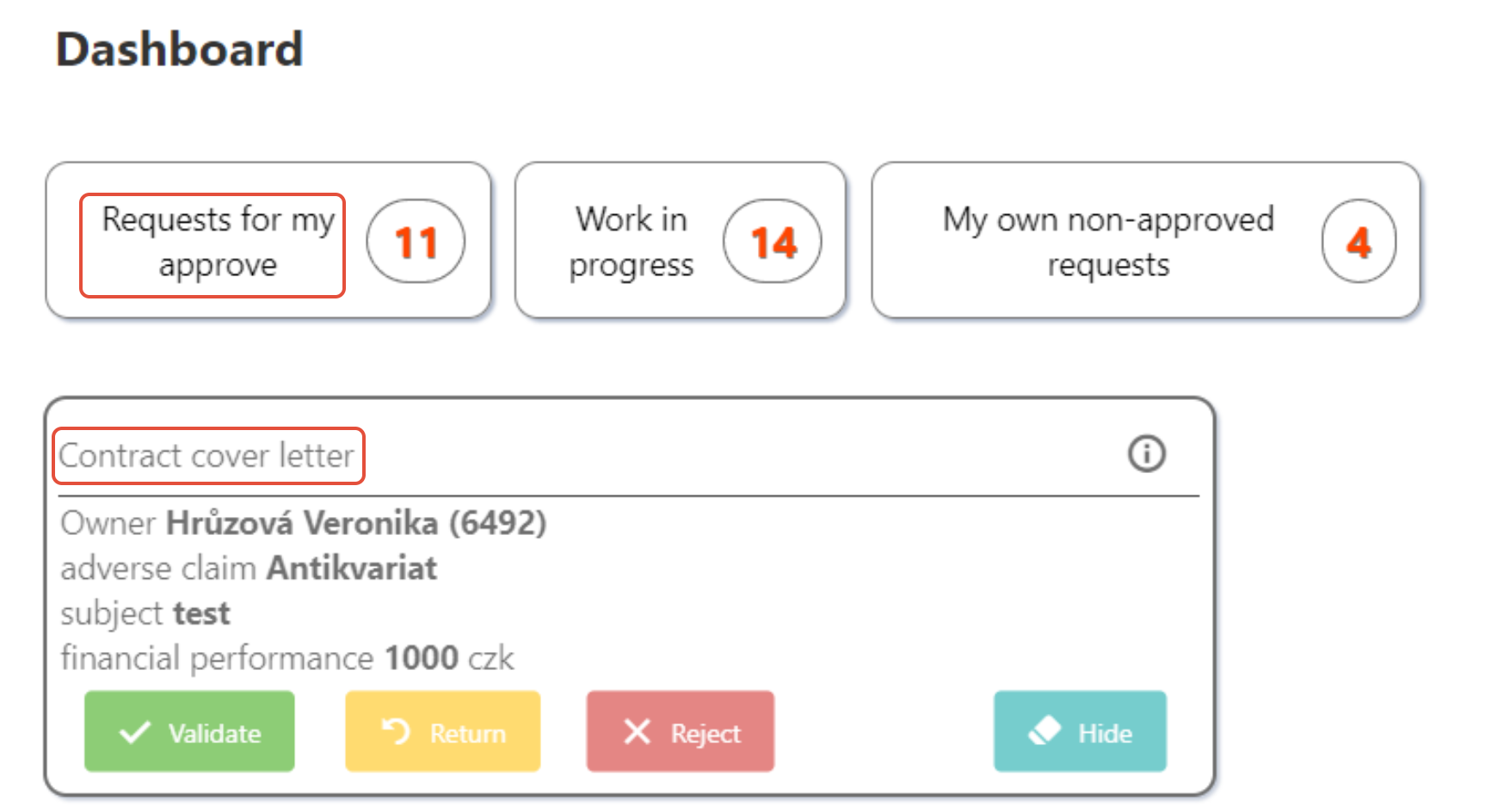
The Approver receives a request titled "Contract Cover Letter" and it is included in the list of "Requests for my Approve".
 Once the contract is signed by the director, it will appear as an additional attachment to the request with _signed in the title. If the requester has indicated on the cover letter that he will send the signed contract to the counterparty themselve, he will receive an e-mail notifying them him the contract is already signed.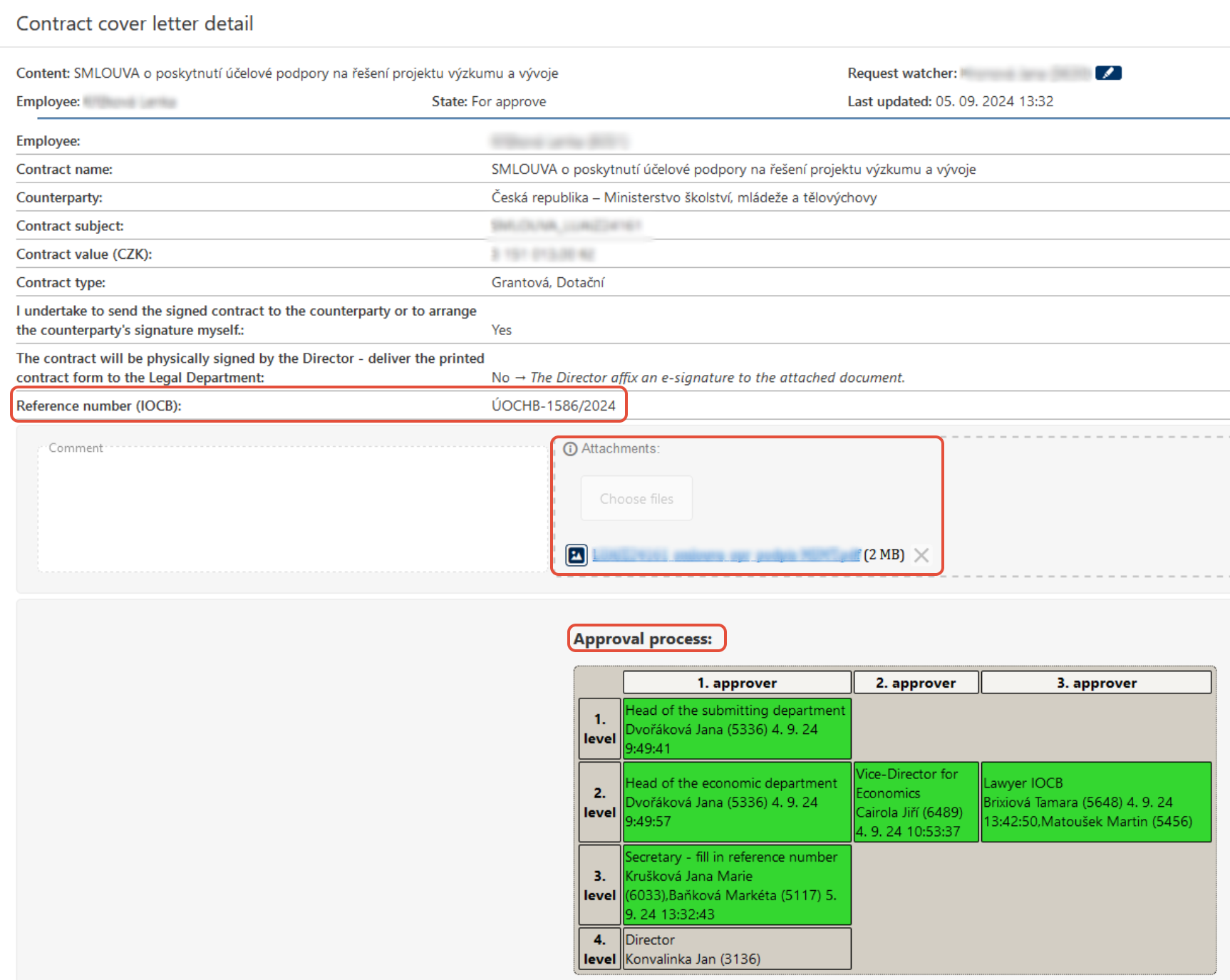
Once the contract has also been signed by the counterparty, a PDF of the contract will be added as an additional attachment to the request.
Save the form as a PDF
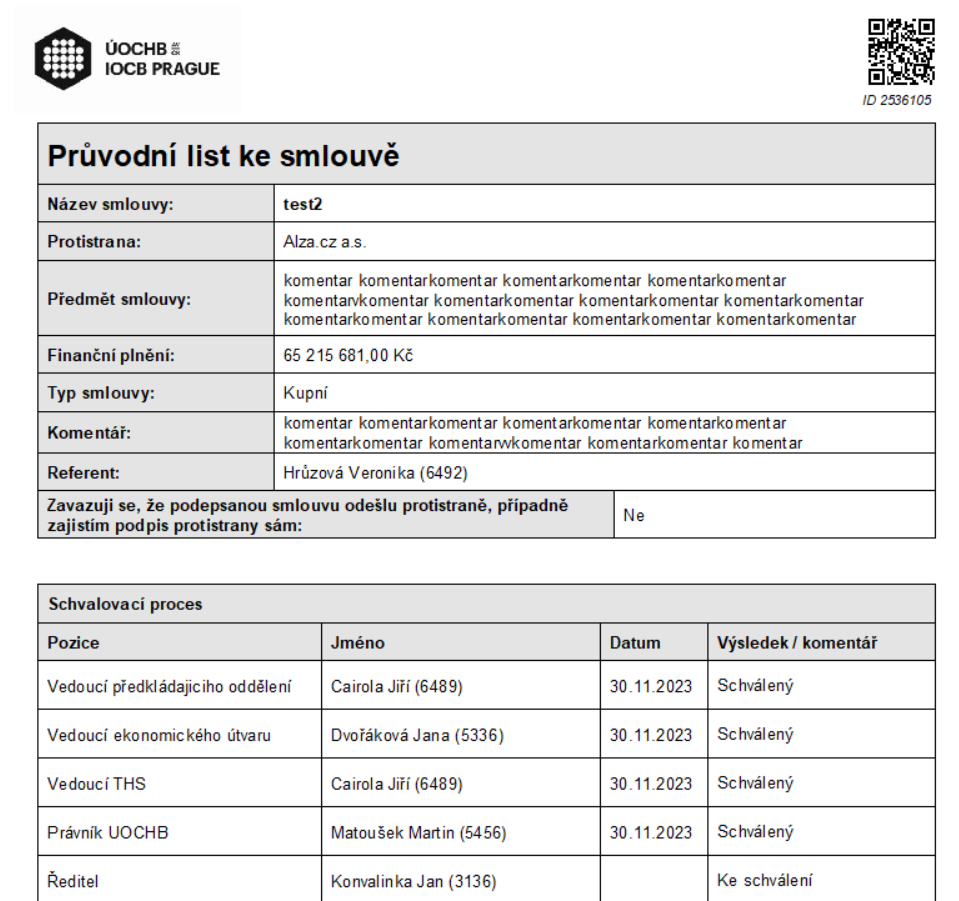
The cover letter (document including the approval process) can be saved in PDF format by clicking on "Export to PDF".